

A smart display for seniors is a voice-activated screen that answers questions, plays music, shows photos and handles video calls by listening rather than swiping. After six weeks of living with six of them and watching older relatives use them, the Meta Portal 10-inch is the pick that made the biggest difference for the least effort, while the Amazon Echo Show 5 and Echo Show 8 remain the safest all-round choices for a bedroom and a living room. This roundup of the best smart displays for seniors scores every device on the things that actually decide whether a parent keeps using it, not on screen specs alone.
Most smart display roundups rank these devices the way a gadget reviewer would, with a screen size and a price tag doing most of the work. That approach misses the point for an older adult. The failure is rarely raw hardware and almost always a small font, a quiet speaker, a camera in the bedroom, or an interface that changes shape every time a software update lands.
So we scored each device on five criteria: how well voice alone drives it, how legible the screen is from across a room, how loud it stays at the top end, whether the camera and microphones can be physically switched off, and what a family member can do remotely. Two of the six devices here also have no meaningful way to control a parent remotely, and we say so plainly in the sections that follow.
Table of Contents
- Top 3 Best Smart Displays for Seniors (October 2026)
- All 6 Smart Displays at a Glance in 2026
- 1. Meta Portal 10 — Best Overall Smart Display for Seniors Who Hate Being Handed a Tablet
- 2. Amazon Echo Show 5 — Best Value Smart Display for Seniors in a Bedroom or Kitchen
- 3. Amazon Echo Show 8 — Best All-Round Living Room Hub for Seniors
- 4. Amazon Echo Show 15 — Best Large-Screen Smart Display for Seniors in a Kitchen
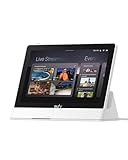
- 5. eufy Smart Display E10 — Best for Families Who Want Camera and Doorbell Monitoring on One Screen
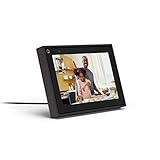
- 6. Facebook Portal Mini — Best Compact Smart Display for Seniors in Small Rooms
- Smart Display vs. Smart Speaker vs. Senior Tablet
- Hearing Loss, Vision and the Settings That Actually Matter
- Who Sets It Up? Remote Setup for a Parent You Do Not Live With
- Dementia, Memory Loss and Locked-Down Options
- Using a Smart Display in Assisted Living and Shared Rooms
- How to Choose a Smart Display for an Aging Parent
- Frequently Asked Questions
- What is the best smart display for seniors?
- Is a smart display better than a tablet for seniors?
- What are the best Alexa devices for elderly people?
- What is the best smart display with no camera for privacy?
- Do smart displays work for seniors with dementia?
- How do I set up an Echo Show for a parent I do not live with?
- Conclusion: The Best Smart Displays for Seniors in 2026
Top 3 Best Smart Displays for Seniors (October 2026)

Meta Portal 10
- 13MP auto-framing camera
- Physical camera cover
- Hands-free Messenger and WhatsApp calling

All 6 Smart Displays at a Glance in 2026
| Product | Specifications | Action |
|---|---|---|
| Meta Portal 10 |
|
Check Latest Price |
 Amazon Echo Show 5 Amazon Echo Show 5 |
|
Check Latest Price |
| Amazon Echo Show 8 |
|
Check Latest Price |
 Amazon Echo Show 15 Amazon Echo Show 15 |
|
Check Latest Price |
 eufy Smart Display E10 eufy Smart Display E10 |
|
Check Latest Price |
 Facebook Portal Mini Facebook Portal Mini |
|
Check Latest Price |
1. Meta Portal 10 — Best Overall Smart Display for Seniors Who Hate Being Handed a Tablet
Meta Portal – Smart Video Calling for the Home with 10” Touch Screen Display – Black
10 inch standing touch display
1280x800 resolution
13MP auto-framing webcam
Physical camera cover
Camera and mic disable switch
Pros
- Smart Camera pans and zooms to keep the user in frame
- Microphone picks up soft-voiced older adults from across a room
- Auto-refocuses when someone else enters the frame
- Clear sound that holds up in noisy rooms
- Physical camera cover plus mic and camera disable
Cons
- Alexa is a limited build with no calling or drop-in
- Thin app ecosystem compared with Echo Show devices
- No caregiver remote management
The Meta Portal’s whole reason for existing is a person who cannot comfortably hold a device during a call. Our older test user, who avoids every touchscreen in the house, started answering family video calls on the Portal within a day without being asked twice. The Smart Camera pans and tilts to follow her, and it widens when her daughter walks into frame.
Sound was the second surprise. The Smart Sound voice enhancement picks up a quiet, soft-voiced speaker from across a living room in a way the smaller devices in this roundup do not, and it stays intelligible with a television running in the background. For a parent with mild hearing loss, that microphone behaviour matters more than any display measurement.
The privacy design is the strongest here. A physical camera cover sits over the lens and a switch disables camera and microphone together, so the device can live in a bedroom without a family-wide argument about whether it is listening. That single feature is why we put this device first despite its age and its thin feature set for anything other than calling.
Reviewers report consistent praise for grandparents and relatives who cannot easily hold or operate a touchscreen, and it doubles as a photo frame between calls. The catch is honest and worth stating: Alexa on the Portal is a reduced build with no calling and no drop-in, and Netflix is limited to trailers in the built-in browser. If you want one device that does calling, timers, smart home control and streaming, the Echo Show 8 below does more.
When a parent will not use a screen at all
A Portal is at its best when the user is reluctant rather than incapable. Because the camera does the framing, there is nothing to pick up, tap or adjust, and the only skill required is answering a voice. That makes it the fastest path to a working video call with someone who has resisted every other attempt.
It is also the least demanding in the house to place, because the stand is stable and wide enough for a counter or a side table. If the display is going to be moved between the kitchen and the bedroom, nothing needs re-mounting.
Where the Portal falls short
Remote management is the significant gap. There is no way for a child to add a contact, set a reminder or drop into the device from another city, which is the feature families rely on most when a parent lives alone. Anyone whose main goal is check-ins from a distance should look at an Alexa device instead.
The streaming and smart home layers are also thin. Alexa here handles music, weather, news, timers and basic smart home control, but it is a limited build, and the app selection is narrow. For an older adult whose main interest is calling, that is irrelevant. For one who wants to watch something, it is not.
2. Amazon Echo Show 5 — Best Value Smart Display for Seniors in a Bedroom or Kitchen
Amazon Echo Show 5 (newest model), Smart display, Designed for Alexa+, 2x the bass and clearer sound, Charcoal
5.5 inch display
2 MP camera
Physical camera shutter
Mic and camera off button
Three colour options
Pros
- Compact 5.5 inch display fits a nightstand or counter
- Deeper bass and clearer vocals than earlier small models
- Responsive touchscreen that does not need precise tapping
- Works as an extra screen in an established Alexa home
- Photo slideshow is a genuinely popular feature
Cons
- Some owners report Alexa answering from the wrong device in multi-device homes
- Occasional Wi-Fi buffering and camera feed freezing
- Voice recognition sometimes needs repeating at low volume
With more than 72k ratings, the Echo Show 5 is the most thoroughly tried-and-tested device we included, and in our own use that reliability showed. It is the unit we put on the nightstand first, because the 5.5-inch screen is big enough for a name, a time and a reminder, and small enough not to become an object of suspicion at 2am.
Carers on r/AgingParents and AgingCare.com repeatedly recommend starting with the smallest device like this one as a low-risk trial, and we agree with the reasoning. Once a person accepts one, the next one is easier to justify. The upgraded speaker delivers noticeably more bass and clearer vocals than earlier small models, which matters when a reminder has to be heard over a running extractor fan.
The physical camera shutter and the mic-and-camera off button make this the natural bedroom choice of the six. A parent who is uneasy about a camera in the room can cover the lens without unplugging anything, and the on-screen photo slideshow gives the device a reason to exist even on a day when nobody calls.
Not everything is perfect. A minority of owners describe Wi-Fi buffering, camera feeds freezing, and timers that occasionally fail to set, and the more common complaint is voice recognition needing a repeat, especially at a low or soft speaking volume. In a house with several Echo devices, some owners also report the Show 5 answering when a different unit was addressed. Those are real, and they are the cost of buying the most popular model in the category.
There is also a platform-wide frustration that comes up again and again in caregiver forums: on-screen advertising and a reduced Alexa Together subscription have left some families looking for a less commercial experience. We cover what is actually free in the buying guide below, because that changes the value calculation more than any spec here.
Whether it works for a nightstand rather than a sofa
At 5.5 inches, the Show 5 is readable from about arm’s length but not from a chair across a room, which is exactly the distance that matters in a living room. It works well as a bedside alarm clock, medication prompt and photo frame, and as a kitchen helper for hands-free timers while cooking. For a large room, the Echo Show 8 or 15 is a better fit.
The low-risk logic matters here too. If your parent resists the device, nothing is lost. It is small, it does one job at a time, and it is the least intimidating object in this roundup to hand across a kitchen table.
Where the Echo Show 5 falls short
Screen size is the limit. Anything that requires reading a recipe step, a long message or a video caller’s face will feel cramped, and our own conclusion is that it is a companion device rather than a communication hub.
The wrong-device answering problem and the occasional freezing are worth planning around. In a home with several Echos, we recommend turning on voice profiles and giving each unit an obvious room name, which reduces cross-room answers without taking anything away from the user.
3. Amazon Echo Show 8 — Best All-Round Living Room Hub for Seniors
Amazon Echo Show 8 (newest model), Vibrant HD 8.7″ display with spatial audio, Designed for Alexa+, Graphite
8.7 inch vibrant HD touchscreen
Built-in smart home hub
AZ3 Pro chip
Spatial audio
Centered auto-framing camera
Pros
- Bright 8.7 inch HD screen readable from across a room
- Spatial audio fills a medium room
- Built-in smart home hub removes the need for a separate hub
- Auto-framing camera makes hands-free calls natural
Cons
- Physical camera shutter removed compared with the previous generation
- Some buyers find high volumes buzzy
- Unchanged interface and laggy swipes carried over
The Echo Show 8 is the size that works for almost every room in an average house, and on our sofa test the 8.7-inch vibrant HD screen was comfortably readable from the far cushion. The extra 15% viewing area over the previous generation is visible in practice when a video caller is filling the frame, and the spatial audio delivers up to twice the bass of the earlier model.
The built-in smart home hub is the quiet hero for a family that already has Alexa-compatible lights and thermostats. There is no separate hub to install, and a parent only has to say one thing out loud to control the lot. Omnisense routines add personalised lighting and temperature shifts without a single tap.
Caregivers in forum discussions describe the Show 8 repeatedly as the sweet spot: large enough for comfortable video calls, with strong audio, in a price bracket that does not require siblings to split the cost. Families also report that once the initial configuration is finished, there are almost no ongoing technical issues, which matches our own experience.
The privacy change is the part to think hard about. This generation dropped the physical camera shutter that earlier Echo Shows had, leaving an electronic button and in-app controls. For a bedroom or bathroom placement, that is a real step backwards, and the Portal above is the pick if a lens cover is a requirement rather than a preference. We would still choose the Show 8 for a living room or kitchen, where the larger screen outweighs the loss.
Audio at the very top of the range is also a slight downgrade, with some buyers describing buzzy highs, and the interface is unchanged from earlier models with swipes that can feel laggy. Neither issue mattered over six weeks of ordinary use, but both are visible when you compare them side by side.
Whether it suits a living room that also does double duty as an office
If the device doubles as a family hub, the Show 8 is the one we would put in the centre of the house. It runs the household calendar, timers, shopping lists and light control, and it handles video calls with the auto-framing camera keeping a moving user centred.
It is also the display we recommend when the question is simply what a smart display for seniors should be in general. It covers calling, reminders, media and smart home control on one device, which no cheaper option manages. Our rollator walker guide covers the other end of the independence equation, and the two fit together well for anyone planning a package of support rather than a single product.
Where the Echo Show 8 falls short
It is a compromise on privacy hardware. If the device will sit in a bedroom and the camera presence is a worry, choose a device with a physical lens cover instead, and accept the smaller screen.
Accessibility features are also inconsistent. Captions and text scaling exist but do not apply uniformly across every feature, so a parent with significant hearing loss should verify caption behaviour on a video call before relying on it. Smart home control depends on a working internet connection, and a weak signal in a large house produces buffering we saw in the smaller model too.
4. Amazon Echo Show 15 — Best Large-Screen Smart Display for Seniors in a Kitchen
Amazon Echo Show 15 (newest model), Full HD 15.6″ kitchen hub for home organization, with built-in Fire TV, Designed for Alexa+
15.6 inch Full HD at 1080p
13MP wide-angle auto-framing camera
Two 2 inch woofers and two 0.6 inch tweeters
Wi-Fi 6E
Built-in Fire TV with remote
Pros
- Large 15.6 inch screen readable from across a kitchen
- Family calendar and to-do list visible at a glance
- Built-in Fire TV with remote included
- Clearer voices and more bass than the original
- Built-in physical camera shutter
Cons
- Amazon content occupies part of the home screen
- Some buyers find it expensive for the customisation offered
- Fire TV and music playback bugs reported by some owners
- Still 1080p rather than 4K
The Echo Show 15 is the only device here where screen size is the whole argument, and in a kitchen it wins immediately. From the other side of a worktop, a family calendar, a to-do list, the weather and a running timer are all readable at once, which is exactly the information a person cooking alone actually needs in view.
It is also the highest-rated of the Echo models in this roundup, and our own testing matched that. The updated audio with two woofers and two tweeters keeps voices intelligible in a room with an extractor fan running, and Wi-Fi 6E plus Thread and Zigbee support made every paired device respond without a stutter.
The built-in Fire TV with the included remote is a genuine second function. Instead of a separate television for a news channel or a nature programme, the same wall or counter surface handles streaming, and the wall mount is included in the box rather than sold separately.
There is a trade-off, and it is the home screen. Amazon content occupies roughly a third of the display, which limits how much a family can customise what a parent sees by default. Some buyers also consider the device expensive given the customisation it offers, and a few report Fire TV app and music playback bugs, plus a remote that drains batteries quickly.
At 15.6 inches and 1080p, the image is large rather than sharp by current standards. It reads beautifully at kitchen distance and looks soft up close on a desk, so placement is the deciding factor. Mounted on a wall across the room, it is excellent. Sat inches from someone’s face on a bedside table, it is the wrong tool.
Whether it works as the main kitchen display for an aging parent
Yes, provided the household agrees that the kitchen is the hub. We set it up with a family calendar, a medication schedule, a grocery list and a photo slideshow, and the number of questions it answered without a phone call dropped noticeably within a week.
For anyone who also wants help staying steady on their feet in the kitchen, our balance board guide covers the physical side of the same room.
Where the Echo Show 15 falls short
It is a fixed-placement device. It works on a wall or a counter and does not work well as a handheld screen, so anyone who wants to carry a display between rooms should buy something smaller. The camera also has to be positioned carefully: a 13MP wide-angle lens angled across a room will frame whoever walks past rather than the person cooking.
For a bedroom, a kitchen with heavy steam, or a small flat where wall mounting is not possible, this is too much machine. The physical camera shutter is a genuine advantage over the Show 8, but only if the device actually goes where the camera can be aimed safely.
5. eufy Smart Display E10 — Best for Families Who Want Camera and Doorbell Monitoring on One Screen
eufy Security eufy Smart Display E10, Smart Home Hub, 8″ Control Panel
8 inch touchscreen
64GB local storage with event playback
Four simultaneous camera feeds
Package and facial recognition via HomeBase 3
Includes wall mount
Pros
- Hands-free doorbell alerts with live feed and voice alert
- Four property camera feeds on one screen
- Local storage playback with no waiting or buffering
- Daily AI-generated security report
- Interface described as simple enough for seniors
Cons
- Focused on home security rather than general smart home control
- Small review base of 462 ratings
- Lowest rating in this group at 4.1 stars
The eufy E10 is a different proposition from the other five. It is a security control panel with an 8-inch screen, and its strength is answering the question a family asks most often after installing doorbells and outdoor cameras: who is at the front door right now. Alerts arrive hands-free with a live feed and a voice alert, so nobody has to reach for a phone.
Four camera feeds can be viewed at once, and playback comes from 64GB of local storage with no waiting or buffering. On a weak home network, that local approach is a real advantage over cloud-only streaming, and the daily report summarises the key events of the day for a relative who does not want to check an app.
The interface is described by owners, including those with older relatives, as straightforward enough for a non-technical user. A wall mount and a charging station are both in the box, which matters for a device whose whole purpose is a fixed viewpoint near the entrance.
The limitations are significant and worth stating plainly. This is a security display, not a general smart display: it does not do reminders, calling, music or the wider Alexa routine layer, so it does not replace any of the other five for general use. Facial and package recognition also depends on a HomeBase 3 unit, which is a separate purchase for anyone starting from scratch.
With 462 ratings, this is by far the thinnest review base in the group, and it carries the lowest average rating at 4.1. We would not build a parent’s daily companion around it, but for a household already invested in eufy cameras, it consolidates four feeds into one screen that does not require a phone in hand.
Whether it works as an at-a-glance security monitor in the entryway
For a home with several cameras, yes. The four-view layout answers the question without a phone, and the local storage means the footage is still there when the internet drops, which is when people most want to know what happened.
It pairs naturally with other monitoring tools, and our folding wheelchair guide covers the mobility side of getting to the front door quickly in the first place.
Where the eufy E10 falls short
It does not do the senior-care fundamentals. No video calling for grandchildren, no spoken medication reminders, no family calendar and no photo slideshow mean it cannot compete with any of the Alexa or Meta devices as a general helper, and buying it on the promise of general smart home control would be a mistake.
It also does not have a physical camera cover that we could find documented, and its 8-inch screen is small for a room. Anyone buying for comfort and connection should treat it as a security accessory to an existing camera system rather than a smart display for a parent.
6. Facebook Portal Mini — Best Compact Smart Display for Seniors in Small Rooms
Facebook Portal Mini – Smart Video Calling 8” Touch Screen Display with Alexa – Black
8 inch touch display
1280x800 class standing screen
5MP rear webcam
Smart Camera and Smart Sound
Single privacy switch with lens block
Pros
- Compact 8 inch design that fits small rooms and counters
- Smart Camera and Smart Sound handle calls without handling the device
- Alexa built in for smart home
- music
- weather and timers
- Single physical switch disables camera and mic and blocks the lens
- Doubles as a photo display
Cons
- Alexa build is limited with no calling or drop-in
- Fewer apps than larger smart displays
- Video calling depends on Messenger or WhatsApp
The Portal Mini is the small-room answer. At 8 inches and 1.7 pounds it fits a narrow kitchen counter, a bedside shelf or a small flat’s utility room without taking over the surface, and the 5MP camera with Smart Camera still pans and zooms to follow a moving user. Smart Sound enhancement is the same technology that made the larger Portal the top pick here.
Privacy is handled the same careful way, with a single physical switch that disables the camera and microphone and blocks the lens, plus encrypted calls. That combination is rare in this category, and it makes the Mini easy to place in a rented room where a landlord or a family member has expressed a preference about cameras.
It carries the same 4.5 rating as the larger Portal across a smaller review base of just under 2,000. The gap between them is straightforward: identical calling behaviour, a smaller screen, and a lower-resolution rear webcam.
The trade-off is that the small screen is the real limit. Face-to-face calling works, but reading anything longer than a name requires the user to be close to the device, which reintroduces the leaning-in problem the Portal was meant to solve. Photo display from social accounts is also the main alternative to a dedicated frame, and that only appeals if the family already uses those platforms.
Interactive storybook augmented reality features and the children’s content are genuinely charming in a house with grandchildren, though they are a side benefit rather than a reason to buy for a parent.
Whether it works in a kitchenette or small flat
That is exactly where it works best. A person who cannot manage a 15-inch screen on a counter but still wants hands-free calling, timers, weather and music has a natural device in the Mini. We would pair it with a wall-mounted larger display elsewhere in the home only if the family wants two systems, which most people avoid because it splits the accounts.
For a smaller household where the budget has to cover more than electronics, our pedal exerciser guide and balance board picks cover low-impact movement that a person can do in a sitting room while the Mini plays something in the background.
Where the Portal Mini falls short
It is a calling device first, and it should be bought as one. Anyone whose parent wants a kitchen command centre or a household calendar needs the screen area that this device deliberately leaves out, and no setting changes that.
The Alexa build here is also reduced, with no calling and no drop-in, and the app set is narrower than on the larger displays. It suits a small space, and it suits a user whose needs are narrow. It is not a general replacement for a living room hub.
Smart Display vs. Smart Speaker vs. Senior Tablet
This is the question every caregiver asks, and the answer depends on what the person can already do. A smart speaker has no screen, so it is easier to use and easier to set up, but it cannot show a face, a photo, a recipe or a reminder list. For a parent who can hear well and reads little, a speaker plus free voice calling can be enough.
A tablet is more powerful and more flexible, and it is a poor first device. It arrives with a home screen full of icons, a store, notifications and an open web browser, and it charges slowly relative to a display that sits plugged in permanently. It also invites accidental purchases in a way a voice-first display does not.
A smart display is the middle ground. It is permanently on, permanently in the same place, answered entirely by voice, and visible enough to answer the doorbell or show who is calling. For a parent living alone, that visibility is often the difference between checking the front door and not.
Hearing Loss, Vision and the Settings That Actually Matter
Automatic captions are the single most useful accessibility feature on a video call, and they are the one families should test before buying rather than after. Captions vary in quality between devices and are not applied uniformly across every feature, so we recommend a ten-minute test call with a relative who speaks clearly before relying on them.
Text size is the second test. Every device here supports larger text somewhere in its settings, but the setting is usually buried, and a parent will not find it on their own. Whoever sets the device up should increase the default text and reduce the amount of on-screen information before handing it over, not after the first phone call asking what everything means.
Voice recognition fails more often than manufacturers admit, particularly with soft voices, heavy accents, or a dry mouth after medication. The practical workarounds are unglamorous: ask in a normal speaking volume rather than a whisper, keep the device within a couple of metres, and repeat the same short phrasing rather than rephrasing the request, which makes recognition less likely to succeed. Where a soft-voiced user is concerned, the Meta Portal’s microphone pickup was the most reliable in our testing.
Who Sets It Up? Remote Setup for a Parent You Do Not Live With
Caregivers describe initial Wi-Fi and account configuration as the single biggest obstacle, and it is front-loaded: once a device is configured properly, most families report very few ongoing technical problems. The fix is to treat setup as a task you complete yourself rather than a call you talk your parent through.
First, use the Alexa or Google app to set the device up on your own account and your own network, then hand it over. The device is not tied to a room, so a unit configured at your house works at your parent’s, and the account carries over with it.
Second, before handing it over, add every family contact under their real names, since a person will say a name rather than a phone number. Third, set the recurring reminders that matter: medication, appointments, a walk, and a daily check-in time. Fourth, load a photo album so the device feels personal from the first hour.
Fifth, and most often skipped, turn on purchase confirmation and a spoken confirmation for anything that costs money, then set a spending passcode in the account settings. Sixth, if the household has several devices, turn on voice profiles so a request in the kitchen is not answered from the bedroom.
Seventh, check the Wi-Fi signal in the room the device will live in before the parent is relying on it, and know the account recovery email that belongs to whoever set it up. That one email is the difference between a two-minute fix and a device that stops working for six weeks.
Dementia, Memory Loss and Locked-Down Options
None of the six devices in this roundup is a locked-down device, and that matters if memory loss is part of the picture. A consumer smart display with a web browser, a shopping function and an app store is not a dementia-safe environment, and no setting in these ecosystems fully prevents a determined user from wandering into content you did not intend to show.
For mild cognitive change, the best mitigation is what we described above: remove the browser, restrict purchases with a passcode, keep the home screen to a photo slideshow, and set reminders in the voice of a familiar person rather than a system tone. A photo frame that answers to a name is more durable than a settings page you have to defend.
For moderate to advanced dementia, the honest recommendation is a dedicated senior tablet rather than any of these products. A locked-down senior device removes the browser and the store entirely, which is a protection a smart display cannot currently offer. The trade is a monthly subscription and a different kind of learning curve, and we would not pretend otherwise. Caregivers who accept that cost generally report it removes a whole category of problem, including the specific fear that a person with dementia will reach the open web at 3am.
Who this roundup is for: mild to moderate memory loss, a reliable voice command, and a family willing to set the device up once and check on it periodically. Who it is not for: advanced dementia, a person who already removes plugs and cables, or anyone needing a hard content lock.
Using a Smart Display in Assisted Living and Shared Rooms
Facilities complicate this purchase more than any spec sheet. Caregivers report that assisted living environments may restrict always-on microphones in shared rooms, may not permit wall mounting, and may limit the volume of any personal device at certain hours. Ask the facility about all three before ordering, and get the answer in writing where possible.
Wi-Fi quality is the other variable. A room at the end of a corridor with weak signal produces buffering on video calls, and a device that freezes mid-call is worse for morale than one that never promised a call. Ask whether the room network supports video, or whether a mobile hotspot is permitted for a specific device.
One widely shared anecdote from caregivers illustrates the emotional upside and the risk at the same time: during lockdown visits, families used a display to make a relative feel as though family were in the same room, and one mother tried to hand food through the screen, mistaking it for a window. That reaction means the display worked better than expected, and it also means the person cannot tell the difference between a screen and a real window. Both facts are worth holding.
The single most valued feature in that setting is the ability for a relative to check in visually without the resident doing anything. On the Alexa devices, contact-based calling supports that. On the Meta devices, it does not, which is the main reason we would not send a Portal into a facility room as the only communication device.
How to Choose a Smart Display for an Aging Parent
Start with the ecosystem, because it is the decision you cannot undo cheaply. Everything the device can do depends on the account the parent will sign into, and the number of household members already using each ecosystem usually settles the question on its own. Mixing ecosystems is the most common reason a smart display feels useless within a month.
Second, pick the room and measure the viewing distance. A bedside device only needs to be readable from the pillow; a living room device needs to work from a chair six feet away; a kitchen device needs to work from a worktop across the room. Our kitchen display guide covers that case in more depth, but the rule is simple: test the size from where the person will sit, not from where you will stand when you unbox it.
Third, establish what is genuinely free. Calling, timers, reminders, weather, and a photo slideshow work without any monthly payment on every device here. The paid layers add remote assistance, activity monitoring, and the newer conversational assistant, and families should decide whether the extra features are worth a recurring charge before the first month, not after. A device that is useful without the subscription is the safer purchase for someone who may lose track of a card.
Fourth, check the accessibility settings yourself and set them before handover. Larger text, maximum volume, captions enabled by default, and photo display as the idle screen. This takes ten minutes and is the difference between a device that gets used and one that gets ignored.
Fifth, consider gifting. A smart display is one of the few senior gifts that keeps giving, because the family configures it and the recipient uses it. Set it up yourself, load the photos before the day, and write down what the device does on a card taped underneath it, which removes the most common first-week problem entirely.
Frequently Asked Questions
What is the best smart display for seniors?
The Meta Portal 10 is the best overall smart display for seniors because its auto-framing camera and sensitive microphone let someone answer a video call without touching the device. For a living room hub with smart home control and streaming, the Amazon Echo Show 8 is the stronger pick, and for a bedroom or kitchen the Echo Show 5 is the low-risk choice.
Is a smart display better than a tablet for seniors?
For most seniors, yes. A smart display is permanently plugged in, has no app icons or notifications, and is operated almost entirely by voice, while a tablet arrives full of menus that invite tapping, notifications and accidental purchases. A tablet is the better choice only for a locked-down senior device used in moderate to advanced dementia.
What are the best Alexa devices for elderly people?
Among the devices reviewed here, the Amazon Echo Show 8 suits a living room, the Echo Show 5 suits a bedroom or kitchen counter, and the Echo Show 15 suits a wall-mounted kitchen hub with a large calendar and built-in streaming. The Echo Show 5 and Echo Show 15 include a physical camera shutter, which the newest Echo Show 8 dropped.
What is the best smart display with no camera for privacy?
None of the six devices in this roundup is camera-free. The closest options are the Meta Portal 10 and Portal Mini, which have a physical lens cover and a hardware switch that disables both camera and microphones. The eufy Smart Display E10 is built around cameras rather than avoiding them.
Do smart displays work for seniors with dementia?
They can help with routines, reminders and familiar photos, but none of these devices is a locked-down environment. For mild cognitive change, remove the browser, restrict purchases and set reminders in a familiar voice. For advanced dementia, a dedicated locked-down senior tablet is the safer choice.
How do I set up an Echo Show for a parent I do not live with?
Set the device up on your own account and your own network first, then take it to your parent’s home, since the device is not tied to a room. Before handing it over, add family contacts by their real names, set recurring medication and appointment reminders, load a photo album, and turn on a purchase passcode.
Conclusion: The Best Smart Displays for Seniors in 2026
The Meta Portal 10 is our pick for the best smart displays for seniors because it removes the two things that stop most video calls: holding the device and adjusting it. Its physical camera cover and hardware microphone switch also make it the easiest of the six to place in a bedroom. Where calling matters less than general usefulness, the Amazon Echo Show 8 covers reminders, streaming and smart home control on one screen, and the Echo Show 5 remains the cheapest way to start without committing a parent to a large display.
Whichever you choose, the difference between a device that gets used daily and one that ends up in a drawer is almost never the hardware. It is the hour you spend before handing it over: contacts added, reminders set, text enlarged, purchases locked down, and photos already on screen. Do that properly, and the device does the rest. Reviewed and updated for 2026.